How to Authorize SafePal Wallet for Binance Exchange: A Step-by-Step Guide for Secure Trading

For cryptocurrency traders looking to maximize both security and convenience, linking a hardware wallet like SafePal to a centralized exchange such as Binance has become a popular strategy. This integration allows users to manage assets stored on SafePal while leveraging Binance's deep liquidity and advanced trading tools. However, the process of "authorizing" SafePal for use on Binance is often misunderstood. Below is a clear, action-oriented breakdown of how to connect and use these two platforms effectively.
Understanding the Authorization Concept
First, it is critical to clarify that SafePal is a non-custodial hardware wallet, while Binance is a centralized exchange. You do not "authorize" SafePal to access your Binance account in the traditional sense of granting API permissions. Instead, the typical workflow involves moving funds from Binance to your SafePal wallet for long-term storage, or using SafePal’s integrated DApp browser to interact with Binance's decentralized exchange (Binance DEX) or other DeFi services. For direct trading on Binance.com, you will still need to deposit funds into your Binance account.
Step 1: Setting Up SafePal and Binance Accounts
Ensure you have the SafePal hardware wallet initialized with a secure seed phrase. Download the SafePal mobile app and pair your device via Bluetooth. Similarly, create or log in to your verified Binance account. Enable two-factor authentication (2FA) on both platforms for added security.
Step 2: Transferring Assets from Binance to SafePal
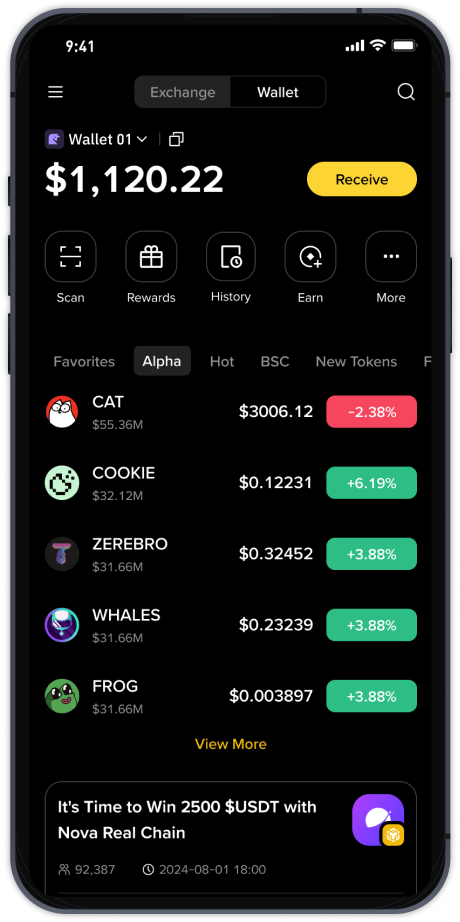
This is the most common method of integration. On Binance, go to "Wallet" > "Spot" and select "Withdraw." Choose the cryptocurrency you want to transfer (e.g., USDT, BTC, or ETH). Open the SafePal app, go to "Wallet" and select the same cryptocurrency. Tap "Receive" to generate a deposit address. Carefully copy this address and paste it into Binance's withdrawal field. Double-check the network (e.g., BEP-20, ERC-20) matches on both ends to avoid losing funds. Confirm the transaction with your Binance 2FA. The funds will arrive in your SafePal wallet within minutes.
Step 3: Using SafePal’s DApp Browser for Binance-Related Services
For those who want to trade directly without moving funds back to the exchange, SafePal’s app includes a built-in Web3 browser. Open the SafePal app, go to "Discover" or "DApps." Find and connect to Binance DEX (BSC-based) or other Binance-affiliated DApps like PancakeSwap. When prompted, confirm the connection on your hardware wallet. This enables you to trade, swap, or stake tokens while your private keys remain offline in the SafePal device.
Step 4: How to Use Binance with SafePal for Enhanced Security
Most experienced users follow a "cold storage plus hot trading" workflow: Keep the majority of your portfolio in SafePal’s cold wallet. When you need to trade, send a small amount back to your Binance spot wallet. Execute your trades on Binance, then withdraw the profits or new assets back to SafePal. This minimizes the exposure of your long-term holdings to exchange risks.
Common Pitfalls to Avoid
1. Network Mismatch: Always ensure the withdrawal and deposit network (e.g., BEP-20 vs. ERC-20) are identical. SafePal supports multiple chains, but a mismatch will result in permanent loss of funds.
2. Email Phishing: Never enter your SafePal seed phrase into any Binance-related website or form. Binance will never ask for your hardware wallet recovery phrase.
3. API Keys: While SafePal does not use Binance API keys directly for custodial access, some third-party portfolio trackers might. Never share API keys that have withdrawal permissions.
Conclusion
Authorizing SafePal for Binance does not mean granting remote control. Rather, it is about strategically using cold storage for safety and exchange liquidity for trading. By following the transfer and DApp connection methods outlined above, you can enjoy the best of both worlds: the security of self-custody with SafePal and the market access of Binance. Always verify addresses, test with small amounts first, and keep your devices updated.